
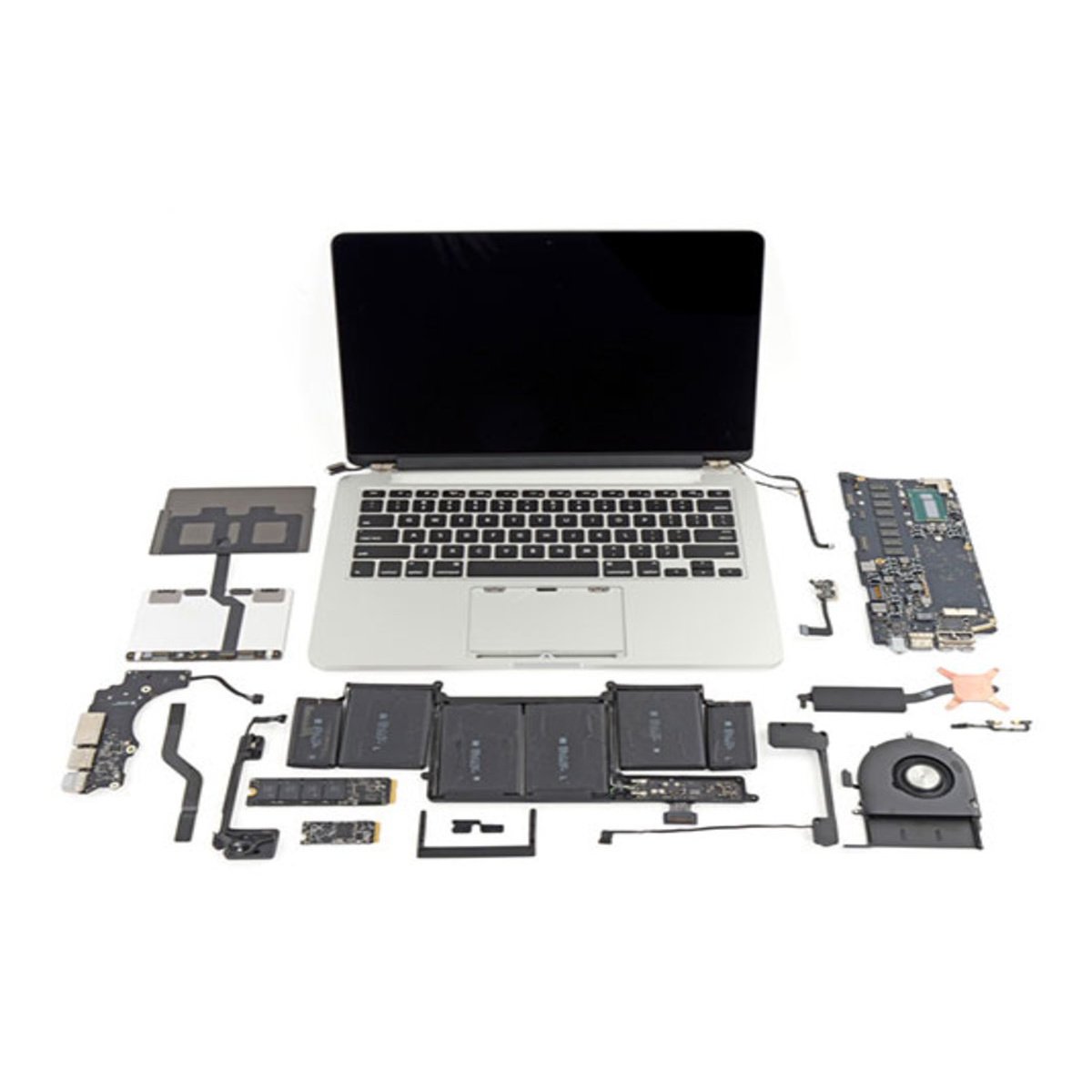
Apple Products Repair provides Apple(MAC) laptop repair services including data recovery, virus removal, hardware upgrades, motherboard repair & replacement, keyboard replacement, Hard Drive replacement, CD and DVD Drive replacement, memory & graphics replacement and upgrades, DC power jack replacement, LCD screen repair. So if you are an Apple(MAC) laptop user, log on to Apple Products Repair and become a member of so as to enjoy a vast range of services at special rates. In case you are encountering any problem with your Apple(MAC) laptop, call our experts and they Repair guide you to our nearest Apple Products Repair Center so that you can experience quality service at the fastest turnaround time.
LCD Screen
In case of any crack or damage to the Apple(MAC) LCD screen, it is advised to replace it with a high quality new one from any of our service centres. Our fair pricing and unmatched service quality makes us the best in the business.
Hard Disk Repair/Replacement
Our experts will take care of all the problems related to your Apple(MAC) hard disk. Whether it is a booting problem or operational problem, our engineers will take care of it.
Memory and Graphics
Your Apple(MAC) laptop can have memory failure or you may just need to increase your Apple(MAC) laptop memory, no need to worry, simply bring it to us & our service executives will be delighted to solve your problems.
Keyboard Replacement
We carry out the complete keyboard repair/replacement at our service centres for your Apple(MAC) laptop with utmost care. Our high quality components will give you an original like experience.
Why LAPSSAV
LAPSSAV is an Online / Offline Screen replacement service designed to make the process inexpensive, stress-free and quick. The entire replacement process can be initiated online, and completed right from the comfort of your home once you select your device and a time and place for your screen repair. An expert technician visits your home or workplace to repair your iPhone’s faulty or broken screen.
Using only genuine parts and 6 months of warranty with a week long money back guarantee, ScreenPro ensures you never had to consider any other option ever again.
Macbook and All Multi-Brands Laptops Pro Repair Macbook and All Multi-Brands Laptops Air Repair Macbook and All Multi-Brands Laptops pro retna


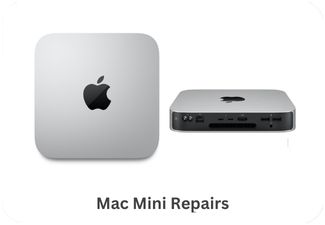

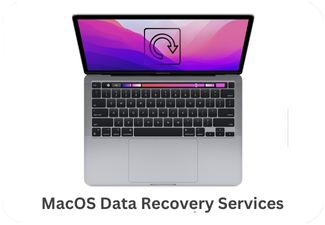
- Iphone Service Care & Repair Service Center
- Macbook and All Multi-Brands Laptops Service Care & Repair Service Center
- Ipad Service Care & Repair Service Center
- Iwatch Service Care & Repair Service Center
Top reasons to go for Online Computer Repair & Support
- Online Computer Repair is instant: no coordinating vendors or waiting at home
- Online PC Repair is cheaper: as we charge only
- No Fix No Fee policy: we charge only if we solve the problem or your money back.
- Supports all Apple Products devices: PC’s, desktops, laptops, tablets, smart phones etc.
- Your device are in safe hands-we repair it by fully APPLE expert engineers.
- Most Common Macbook and All Multi-Brands Laptops Repairs
Macbook and All Multi-Brands Laptops Screen Replacement
Get high quality screen replacement with 18 months warranty. Find a clean, well-lit workspace with plenty of room to work. Lay down a soft cloth or towel to protect the laptop's surface during the repair process.
You'll need tools such as a small Phillips screwdriver, plastic pry tools or spudgers, and possibly a suction cup for removing the screen bezel. Additionally, an antistatic wrist strap can help prevent damage from electrostatic discharge.
Macbook and All Multi-Brands Laptops Battery Replacement
Macbook and All Multi-Brands Laptops battery discharging soon or bulged Some laptops may require battery calibration after a replacement. Follow the manufacturer's instructions or use built-in calibration tools to ensure optimal battery performance. Locate the battery connector on the motherboard and carefully disconnect it from the battery. Some laptops may have additional adhesive or screws holding the battery in place, so check for and remove these as necessary.
Macbook and All Multi-Brands Laptops Motherboard Repair
Macbook and All Multi-Brands Laptops Mother Board Repair details Before attempting any repair, accurately diagnose the problem with the motherboard. Common issues may include power failure, no boot, overheating, or component failure. Use diagnostic tools, software, and visual inspection to identify the problem. If possible, back up important data stored on the laptop's hard drive or SSD. Motherboard repairs can be risky, and there's a chance of data loss during the repair process.
Macbook and All Multi-Brands Laptops Charging Port Repair
Macbook and All Multi-Brands Laptops not charging even when connected to charger sure that the laptop is powered off and disconnected from any external power sources before starting the repair. Remove the battery if possible to avoid any risk of electric shock. Visually inspect the charging port for any physical damage, such as bent pins, loose connections, or debris obstructing the port. Use a magnifying glass and good lighting to examine the port thoroughly.
Macbook and All Multi-Brands Laptops Liquid Damage
Troubleshooting for Macbook and All Multi-Brands Laptops Liquid Damage If you're comfortable doing so, disassemble the laptop following the manufacturer's disassembly guide or service manual. This will allow you to access the internal components and assess the extent of the damage.Use isopropyl alcohol and a soft brush or cotton swab to gently clean any corrosion or residue from the affected components. Be thorough but careful to avoid causing further damage.
Macbook and All Multi-Brands Laptops Back Panel Replacement
Troubleshooting for Macbook and All Multi-Brands Laptops Back panel replacement If everything is working properly, reassemble any remaining components of the laptop, such as the battery or bottom cover. Use a soft cloth or brush to clean any dust or debris from the laptop's exterior.Once the back panel is securely in place, power on the laptop and ensure that everything is functioning correctly. Check for any loose connections or abnormalities that may require further adjustment.
Macbook and All Multi-Brands Laptops Microphone Issue
Diagnose Macbook and All Multi-Brands Laptops microphone if you not able to hear songs or video sound. If available, try using an external microphone to see if the issue is with the built-in microphone or the microphone port. Inspect the microphone for any physical damage, such as bent pins or broken connectors. If the microphone appears damaged, it may need to be replaced.
Macbook and All Multi-Brands Laptops Camera Replacement
Front camera showing blank or blurry screen Carefully disassemble the laptop, following the manufacturer's disassembly guide or service manual. Keep track of screws and components and organize them to facilitate reassembly later. Pay attention to any cables or connectors attached to the camera module.
Macbook and All Multi-Brands Laptops Loud Speaker Repair
Troubleshooting guide for Macbook and All Multi-Brands Laptops speaker not working Determine if the problem is with the loudspeaker itself or if it's related to software or settings. Test the loudspeaker with different audio sources and applications to identify any distortion, crackling, or complete lack of sound.Ensure that the audio settings on your laptop are configured correctly. Check the volume level, audio balance, and any audio enhancement settings in the operating system's sound settings.
Macbook and All Multi-Brands Laptops Screen Backlight Issue
Troubleshooting for Macbook and All Multi-Brands Laptops Screen Backlight Issue Sometimes, a simple restart can resolve temporary software glitches affecting the screen backlight. Restart your MacBook or laptop and check if the backlight issue persists. Visually inspect the screen and surrounding components for any signs of physical damage, such as cracks, dents, or loose connections. Ensure that the screen's cables and connectors are securely attached and undamaged.Some laptops have built-in diagnostic tools for testing the screen and backlight. Check the manufacturer's website or user manual for instructions on how to perform an LCD screen test.
Macbook and All Multi-Brands Laptops not Turning on
Troubleshooting for Macbook and All Multi-Brands Laptops not Turning On. If the laptop has a removable battery, check if it's properly seated and not damaged. If the battery is removable, try powering on the laptop with the battery removed and connected directly to the power adapter.For Windows laptops: Remove the battery and power adapter, then press and hold the power button for about 30 seconds to discharge any residual power. Reconnect the battery and power adapter, then try turning on the laptop again.
Macbook and All Multi-Brands Laptops Touchpad Replacement
Guide for troubleshooting Macbook and All Multi-Brands Laptops touchpad not working Locate the Touchpad Assembly: The touchpad assembly is typically located beneath the keyboard or integrated into the laptop's palm rest assembly. It may be secured with screws or adhesive tape, depending on the laptop model.If the touchpad assembly is secured with screws, carefully unscrew and remove them. If it's held in place with adhesive tape, gently pry it off using a plastic pry tool or spudger. Be careful not to damage the surrounding components or the laptop's palm rest.
Macbook and All Multi-Brands Laptops Power Button is not Working
Guide to troubleshooting power button not working. If you suspect the power adapter may be faulty, try using a different power adapter that is compatible with your laptop model to see if the power button responds. Visually inspect the power button for any signs of physical damage, such as cracks, dents, or loose connections. If the power button appears damaged, it may need to be replaced.
Macbook and All Multi-Brands Laptops WiFi Issues
Troubleshooting for iPhone WiFi Issues. Ensure that Wi-Fi is enabled on your laptop and that it's connected to the correct network. Check the Wi-Fi icon in the system tray (Windows) or menu bar (macOS) to verify the connection status.On your laptop, forget the problematic Wi-Fi network and then reconnect to it. In your Wi-Fi settings, select the network, and choose the option to forget it. Then, reconnect by entering the Wi-Fi password if necessary.
Macbook and All Multi-Brands Laptops Keypad is not Working
Troubleshooting guide for Macbook and All Multi-Brands Laptops keypad button not working. Restart your laptop to see if the keyboard starts working again after a reboot. Sometimes, software glitches can cause temporary keyboard malfunctions. Ensure that your operating system is up to date. Install any available updates for macOS (MacBooks) or Windows (multi-brand laptops), as they may include fixes for keyboard-related issues. Make sure that the keyboard layout and language settings are configured correctly. In Windows, you can check and adjust these settings in the Control Panel or Settings app. In macOS, go to System Preferences > Keyboard > Input Sources.
Macbook and All Multi-Brands Laptops Head Phone Jack not Working
Troubleshooting for Macbook and All Multi-Brands Laptops Head Phone jack not working. Restart your laptop to see if the headphone jack starts working again after a reboot. Sometimes, software glitches can cause temporary audio malfunctions.Check that your headphones or external speakers are properly connected to the headphone jack. Ensure that the connector is fully inserted into the jack and that there are no obstructions blocking the connection.
Macbook and All Multi-Brands Laptops Volume Button not Working
Volume button stuck or not functioning. Check the volume settings in the operating system to make sure that the volume buttons are recognized and configured correctly. Adjust the volume using alternative methods, such as the system menu or keyboard shortcuts, to see if they work.Use compressed air or a soft brush to clean around the volume buttons. Sometimes, dirt or debris can accumulate around the buttons and interfere with their functionality.Ensure that your laptop's audio drivers are up to date. Visit the manufacturer's website or use the device manager in Windows to check for and install any available updates for the audio drivers.
Macbook and All Multi-Brands Laptops Software Upgrade Issues
Troubleshooting for Macbook and All Multi-Brands Laptops Software Issues. If you're encountering software upgrade issues on a Windows laptop, try booting into Safe Mode and then attempt the upgrade process again. Safe Mode starts Windows with only essential drivers and services, which can help troubleshoot software conflicts.As a last resort, consider performing a clean installation of the operating system. This involves reinstalling the operating system from scratch, which can resolve persistent software upgrade issues.
Macbook and All Multi-Brands Laptops Heating Issues
Troubleshooting for Macbook and All Multi-Brands Laptops heating issue. Ensure that the laptop's vents are not blocked and that there is proper airflow around the device. Place the laptop on a flat, hard surface to allow for adequate ventilation.Reduce the number of unnecessary background processes and applications running on your laptop. Closing unused programs can help decrease the workload on the CPU and GPU, reducing heat generation.
REPAIR BY APPLE EXPERT ENGINEER – YOU ARE ONE CALL AWAY…
Mail us at lapssav@gmail.com
- Macbook and All Multi-Brands Laptops PRO Mother Board Repair in Delhi/Noida/Gurgaon
- Macbook and All Multi-Brands Laptops PRO Screen Replacement in Delhi/Noida/Gurgaon
- Macbook and All Multi-Brands Laptops PRO Trackpad Replacement in Delhi/Noida/Gurgaon
- Macbook and All Multi-Brands Laptops PRO Front Glass Replacement in Delhi/Noida/Gurgaon
- Macbook and All Multi-Brands Laptops Hard Disk Repair in Delhi/Noida/Gurgaon
- Macbook and All Multi-Brands Laptops Battery Repair in Delhi/Noida/Gurgaon
- Macbook and All Multi-Brands Laptops charger Repair in Delhi/Noida/Gurgaon
Macbook and All Multi-Brands Laptops PRO repair in RoopNagar, Macbook and All Multi-Brands Laptops PRO repair in Inderlok, Macbook and All Multi-Brands Laptops PRO repair Karol Bagh, Macbook and All Multi-Brands Laptops PRO repair in Patel Nagar, Macbook and All Multi-Brands Laptops PRO repair in Rajendra Place, Macbook and All Multi-Brands Laptops PRO repair in Sadar Bazar,
Macbook and All Multi-Brands Laptops PRO repair in Ram Nagar, Macbook and All Multi-Brands Laptops PRO repair in Dwarka, Macbook and All Multi-Brands Laptops PRO repair in Baljit Nagar, Macbook and All Multi-Brands Laptops PRO repair in Pandav Nagar, Macbook and All Multi-Brands Laptops PRO repair in Kamla Nagar, Macbook and All Multi-Brands Laptops PRO repair in Wazirpur, Macbook and All Multi-Brands Laptops PRO repair in Wazirpur Industrial Area, Macbook and All Multi-Brands Laptops PRO repair in Punjabi Bagh, Macbook and All Multi-Brands Laptops PRO repair in West Punjabi Bagh, Macbook and All Multi-Brands Laptops PRO repair in Jama Masid, Macbook and All Multi-Brands Laptops PRO repair in Mori Gate, Macbook and All Multi-Brands Laptops PRO repair in Paharganj, Macbook and All Multi-Brands Laptops PRO repair in Gole Market, Macbook and All Multi-Brands Laptops PRO repair in Pusa Industrial Area

| Shop Location | Lapssav, A-540, GD Colony, Block A, Mayur Vihar Phase III, Gharoli, 110096, Delhi, India |
No reviews found!